
This describes a somewhat finicky editing method but the end result seems to be reliable: that you can place a H5P widget into an iFrame in an OLab4 Node on Azure.
First, create your H5P widget on WordPress at https://olab4.net
Or you can import an existing H5P widget into that site, or you can use an existing widget on that site.
When editing the widget, you will need the widget number.
Note that, with this method, you will not be using the H5P shortcode to attach your widget. You will not need the phrase: ⌈h5p id="21"] that you may have been familiar with previously. You just need the identifying number.
In another browser window, login to the OLab4 Designer at https://designer.olab4.net
Open the map that you want to work on, then select the Node where you want to place the H5P widget.
You will need to use the Advanced Node Editor because you will be directly working with the internal HTML code that is in the Node.
Alternatively, if you have access to a SQL editor, you can also edit that Node’s text field directly. This is quicker but you have fewer safeguards.
It does help at this point to have some basic familiarity with how to edit HTML. There are many tutorials out there. OLab3 also uses HTML for its Node content so if you are familiar with that, it will help.
When you are in the Advanced Node Editor, it should appear in a new tab in your browser, and the URL should look like this: https://designer.olab4.net/1414/28200/ane where 1414 is the map ID number and 28200 is the node ID number. You can substitute other map and node numbers into this URL if you know where your insertion point is.
Once in the Advanced Node Editor, look for this icon in the toolbar, just below the editor’s File menu: <>, or choose the menu Tools | Source Code
When you click on that Source Code icon, the display will change to show you the raw HTML source code for that Node. It will look something like this.
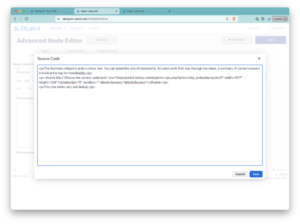
Find the point in the Node’s text where you want to insert your H5P widget. If there is a lot of text to wade through, you can insert a simple bookmark like “insert H5P widget here”, using the Basic Node Editor.
In the ANE, Paste the following code into the HTML. It does not have to be surrounded by p brackets.
<p><iframe title="insert iframe title here" src="https://olab4.net/wp-admin/admin-ajax.php?action=h5p_embed&id=2" width="862" height="594" frameborder="0" sandbox="allow-scripts allow-same-origin" allowfullscreen="allowfullscreen"> </iframe></p>
To use this string, you only need to:
- change the text for the iFrame title. If you forget to do this, it is not important for the functionality of the H5P widget.
- change the H5P id number (which is “id=2” in the above template)
- modify the width and height to suit the widget if you want to.
Remember to [SAVE] your edits in Source Code mode and again [SAVE] your changes in the Advanced Node Editor.
Close the ANE tab.
Close the Designer canvas for that map without editing anything else by clicking on the OLab main menu. If you forget this step then any existing code in the Designer will overwrite the changes that you just made.
To review your changes, reload the Player – logout, login again (to clear the browser cache) and open the map you were just working on.
Test your widget